# Mobile optimization: how to make your website mobile friendly

> Make a website mobile friendly: viewport tag, mobile-first CSS, readable text, 24px tap targets, phone-ready forms and images, then test on real phones.

- URL: https://computese.com/mobile-optimization-for-your-website/
- Author: Duong Quan Nguyen, CEO, Computese
- Published: 2024-10-03
- Updated: 2026-09-25
- Topics: Web development

## In short
- Mobile optimization means the same content on a phone, laid out for a narrow screen: add the viewport meta tag, write mobile-first CSS with fluid grids and keep text readable without zooming.
- Make every tap target at least 24 by 24 CSS pixels or space it out (WCAG 2.2, criterion 2.5.8), give form fields the right type, inputmode and autocomplete, and serve images with srcset, sizes, width and height.
- Google indexes the mobile version of each page, so headings, structured data, metadata and all primary content must be there, and nothing important may load only after a tap.
- Google retired the Mobile-Friendly Test on December 1, 2023. Test with Lighthouse and device mode in Chrome DevTools, the URL Inspection live test, PageSpeed Insights field data and real phones on mobile data.

Mobile optimization is the work that makes a website as usable on a phone as on a desktop: the same content, laid out for a narrow screen, readable without zooming and easy to operate with a thumb. It starts with the viewport meta tag and mobile-first CSS, then covers text, tap targets, forms, images, speed and what Google indexes.

This guide is for whoever builds or maintains the site. It takes each part in the order you would fix it, with the code, the standard behind each rule and a way to check it, then explains how to test now that Google has retired its Mobile-Friendly Test. If you only need the search view, mobile is tip 9 of our [SEO tips for websites](https://computese.com/seo-tips-for-websites-boost-your-online-presence/); the design side is covered in our [web design tips for beginners](https://computese.com/top-design-tips-for-2024-for-starter/).

## Why mobile optimization matters to visitors and to Google

Google settled the search side. On October 31, 2023 it announced that its [move to mobile-first indexing was complete](https://developers.google.com/search/blog/2023/10/mobile-first-is-here), with every site that works on mobile devices crawled primarily by its mobile crawler. The last few desktop-only sites followed: [after July 5, 2024](https://developers.google.com/search/blog/2024/06/mobile-indexing-vlast-final-final.doc) Google crawls and indexes them with Googlebot Smartphone only, and a site whose content cannot be reached on a mobile device at all is no longer indexable. For indexing and ranking, the mobile version of your page is the one that counts.

The visitor side is plainer. Google's [page experience guidance](https://developers.google.com/search/docs/appearance/page-experience) asks whether your content displays well on mobile devices and avoids intrusive interstitials, and it is candid about ranking: Core Web Vitals are used by its ranking systems, while the other page experience aspects do not directly help a page rank. They matter because, as Google's [interstitials guidance](https://developers.google.com/search/docs/appearance/avoid-intrusive-interstitials) puts it, people who find a site hard to use are unlikely to come back, and because a phone layout that hides content also hides it from Google.

There are three ways to serve pages to phones, and Google [recommends responsive web design](https://developers.google.com/search/docs/crawling-indexing/mobile/mobile-sites-mobile-first-indexing) as the easiest to implement and maintain:

| Configuration         | How it works                                                               | What it costs you                                                                   |
| --------------------- | -------------------------------------------------------------------------- | ----------------------------------------------------------------------------------- |
| Responsive web design | The same HTML at the same URL on every device; CSS changes the layout      | Nothing extra: one page, one set of content and metadata                            |
| Dynamic serving       | The same URL, but the server reads the user agent and sends different HTML | Two versions of every template to keep equal, plus a `Vary: User-Agent` header      |
| Separate URLs (m-dot) | Different HTML on a different address, such as `m.example.com`             | Equal content, the same error status on both, `hreflang` from mobile to mobile URLs |

Everything below assumes responsive design, which is what a new build should use.

## Start with the viewport meta tag

Without a viewport tag, mobile browsers lay the page out at a desktop width, [usually about 980 pixels](https://web.dev/articles/responsive-web-design-basics), then shrink it to fit the screen. Text turns tiny, and visitors pinch and zoom to read or tap anything. One line in the `<head>` fixes it:

```html
<meta name="viewport" content="width=device-width, initial-scale=1" />
```

`width=device-width` makes the page match the screen's width in device-independent pixels, so the CSS can reflow the content for that width. `initial-scale=1` sets a 1:1 relationship between CSS pixels and device-independent pixels, so the page uses the full width when the phone is turned to landscape.
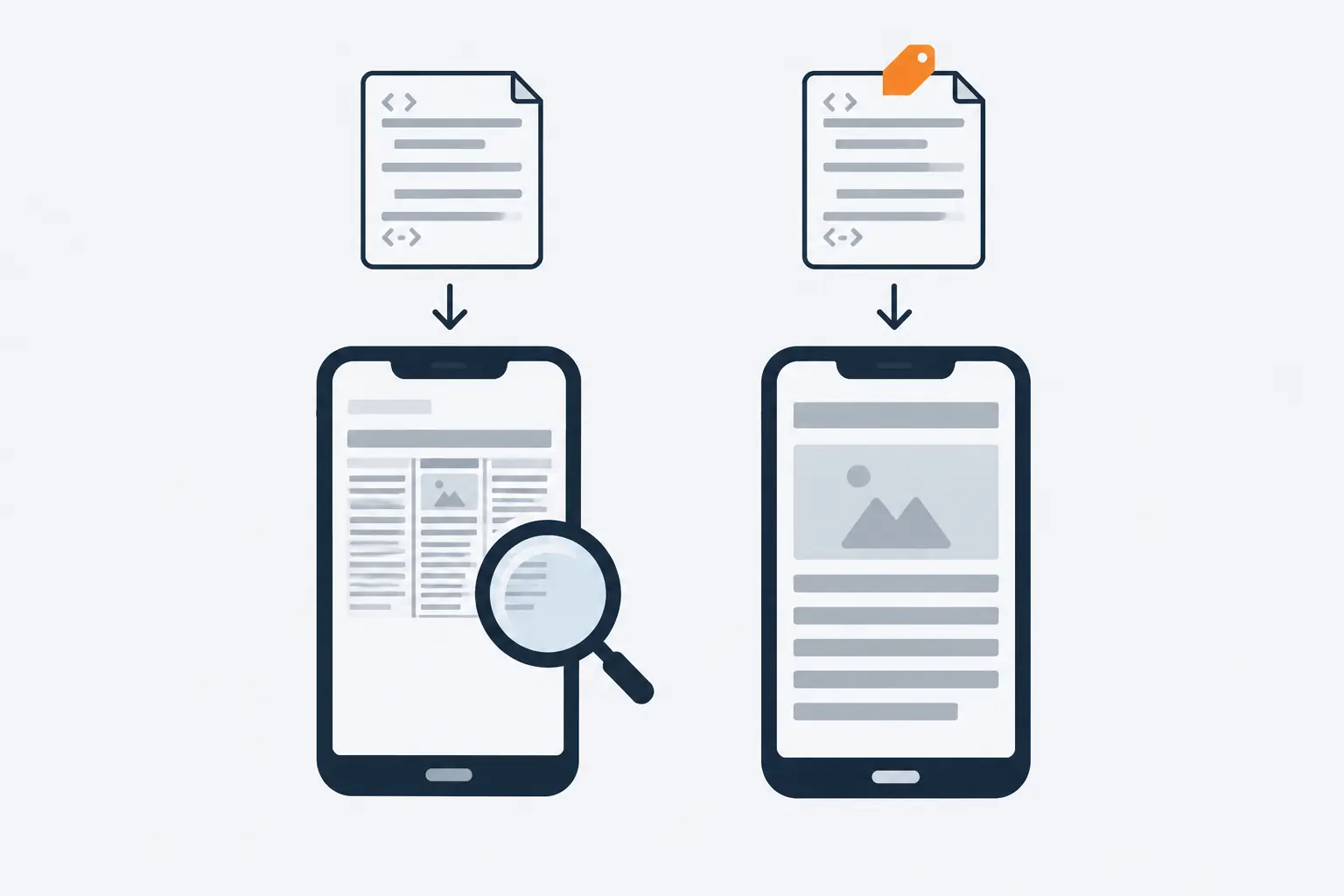
![Two phones show the same page. The left one, with no viewport tag, shrinks a three-column desktop layout; the right one, whose HTML carries an orange tag, shows one readable column.](https://computese.com/images/blog/mobile-optimization-for-your-website/viewport.040a1830cb-1536.webp)

*One line in the head decides whether a phone lays out your page at its own width or shrinks a desktop page to fit.*

Leave out `maximum-scale`, `minimum-scale` and `user-scalable=no`. web.dev advises against them because they can stop people from zooming and cause accessibility problems. For a reader with low vision, a page that cannot be zoomed may be unreadable.

## Lay out pages mobile first, with fluid grids

Mobile-first CSS means the default styles are the phone layout, and `min-width` media queries add columns as space appears. web.dev's advice is to design for the small screen first, [widen the window until the content looks wrong](https://web.dev/articles/responsive-web-design-basics) and put the breakpoint there, rather than picking breakpoints for device classes, brands or operating systems. Between breakpoints the layout stays fluid: widths in percentages, `fr` units and `minmax()`, never a fixed pixel width wider than a phone.

```css
/* Phone first: media never wider than its column */
img,
video {
  max-width: 100%;
  height: auto;
}

/* As many 18rem columns as fit, one column on a phone */
.cards {
  display: grid;
  gap: 1rem;
  grid-template-columns: repeat(auto-fit, minmax(min(100%, 18rem), 1fr));
}

/* A sidebar only once there is room for it */
@media (min-width: 60rem) {
  .page {
    display: grid;
    grid-template-columns: 1fr 18rem;
    gap: 2rem;
  }
}
```

The card grid needs no breakpoint at all: it fits as many columns as the container allows and falls back to one column on a narrow screen. Three checks keep a fluid layout honest:

- **Nothing scrolls sideways at 320 CSS pixels.** WCAG 2.2's [reflow criterion](https://www.w3.org/WAI/WCAG22/Understanding/reflow.html) (1.4.10, level AA) requires content to work at that width without scrolling in two directions; it is what a 1,280-pixel window becomes at 400% zoom. Content that needs two dimensions, such as a data table, is exempt and can scroll inside its own box, but the paragraphs around it must still reflow.
- **Touch is detected, not assumed.** The `hover` and `pointer` media features tell you whether the device can hover and how precise its pointer is. A menu or tooltip that only opens on hover needs another way in on a touchscreen.
- **Full-height sections use the new viewport units.** On phones, `100vh` is sized as if the address bar and toolbars were already retracted, so a full-height hero [is too tall when the page loads](https://web.dev/blog/viewport-units). `100svh` (the small viewport) always fits the visible area, and `100dvh` follows the toolbars as they appear and retract. Both work in all three browser engines.

## Make text readable without zooming

Readable text on a phone is mostly a matter of not fighting the browser:

- **Keep body text at the browser default or larger.** That default is [usually 16px](https://developer.mozilla.org/en-US/docs/Web/CSS/Reference/Properties/font-size). Set sizes in `rem` or `em`: MDN notes that font sizes in `px` are not accessible, because in some browsers the reader cannot then enlarge them.
- **Keep lines a readable length.** web.dev cites classic readability guidance of 70 to 80 characters per line. A phone column is naturally narrow; the limit matters on tablets and desktops, where a `max-width` of around `70ch` keeps paragraphs from stretching across the screen.
- **Let text grow.** Never disable zoom, and avoid fixed-height boxes that clip text when a reader enlarges it; the reflow check above catches most of these.
- **Keep contrast high.** The contrast ratios WCAG requires, and how to measure them, are in our guide to [improving website accessibility](https://computese.com/how-to-improve-website-accessibility/).

## Size tap targets for fingers, not cursors

A mouse pointer lands on a single pixel; a finger does not. WCAG 2.2 success criterion [2.5.8 Target Size (Minimum)](https://www.w3.org/WAI/WCAG22/Understanding/target-size-minimum.html), at level AA, asks for every pointer target to be at least 24 by 24 CSS pixels, with five exceptions:

- **Spacing:** a smaller target passes if a 24 CSS pixel circle centred on it does not intersect another target or another small target's circle.
- **Equivalent:** the same function is available through another control on the page that meets the size.
- **Inline:** a link inside a sentence is exempt, because the line height of the text sets its size.
- **User agent control:** the browser's own control, left unstyled, is exempt.
- **Essential:** the target's exact presentation is essential or legally required.

The spacing test is the one that catches toolbars of icon buttons. In W3C's own example, a row of 20 by 20 pixel icons with 4 pixels between them passes, and the same icons placed edge to edge fail, because their imaginary 24-pixel circles intersect.
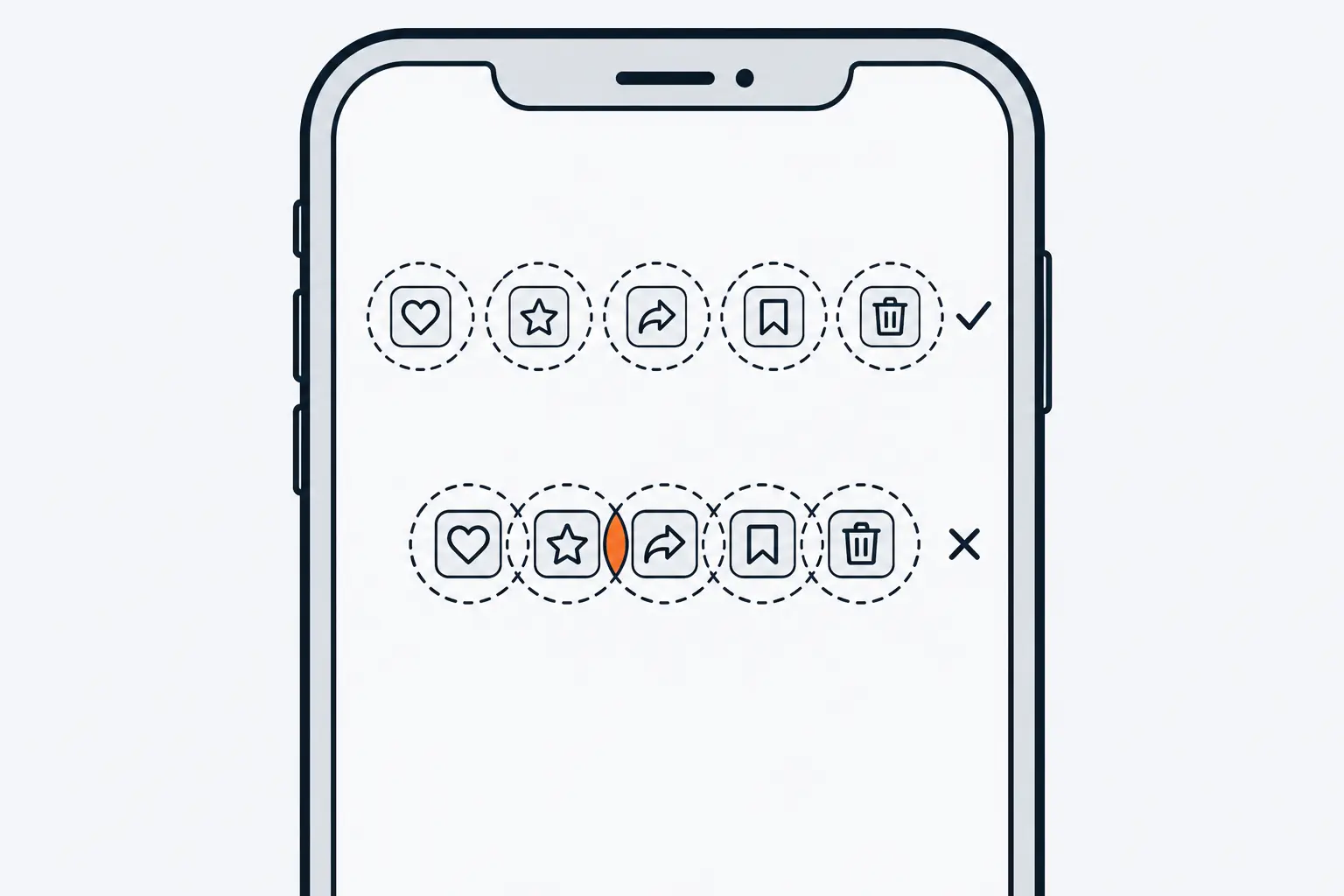
![Two rows of small icon buttons on a phone screen, each with a dashed circle drawn around it. In the top row the circles stay apart; in the bottom row two neighbouring circles overlap in an orange area.](https://computese.com/images/blog/mobile-optimization-for-your-website/targets.11ceda4d7f-1536.webp)

*Small targets can still pass WCAG 2.5.8 if they are spaced so that their 24-pixel circles never overlap.*

Treat 24 pixels as the floor, not the goal: W3C recommends meeting the size itself where you can, rather than relying on spacing. The AAA criterion [2.5.5 Target Size (Enhanced)](https://www.w3.org/WAI/WCAG22/Understanding/target-size-enhanced.html) asks for 44 by 44 CSS pixels, and W3C suggests aiming for it on important links and controls. In CSS the fix is usually a bigger hit area, not a bigger icon:

```css
.icon-button {
  display: inline-grid;
  place-items: center;
  min-width: 44px;
  min-height: 44px; /* the visible icon can stay 20px */
}

.menu a {
  display: block;
  padding-block: 0.75rem; /* taller rows for links in a menu */
}
```

## Build forms that suit a phone keyboard

Every character typed on a phone is effort, so a mobile form should ask the phone for help. The attributes that do it are already in HTML, and web.dev's [form guidance](https://web.dev/articles/payment-and-address-form-best-practices) explains each:

- **`type` picks the keyboard.** `type="email"` and `type="tel"` bring up keyboards suited to an address or a phone number and turn on the browser's built-in validation.
- **`inputmode="numeric"` gives a number pad** without the side effects of `type="number"`, which adds increment arrows that make no sense for card, account or phone numbers.
- **`autocomplete` says which saved value belongs in the field**, so the browser can fill it: `name`, `email` and `tel` for contact details, `street-address`, `address-line1` and `country` for addresses, and `cc-number`, `cc-name`, `cc-exp-month` and `cc-exp-year` for payment cards. Without these values, visitors type everything on a small keyboard.
- **Every field has a visible `<label>`.** Tapping a label moves focus to its field, which also gives a finger a larger target.

```html
<form action="/quote/" method="post">
  <label for="name">Full name</label>
  <input id="name" name="name" autocomplete="name" required />

  <label for="email">Email</label>
  <input id="email" name="email" type="email" autocomplete="email" required />

  <label for="phone">Phone</label>
  <input id="phone" name="phone" type="tel" autocomplete="tel" />

  <label for="address">Address</label>
  <textarea
    id="address"
    name="address"
    autocomplete="street-address"
  ></textarea>

  <button type="submit">Request a quote</button>
</form>
```

Card numbers follow the same pattern: `<input inputmode="numeric" autocomplete="cc-number">` rather than `type="number"`.

## Serve responsive images that do not shift the layout

Images cause two separate problems on phones: a small screen downloading a file sized for a large one, and text jumping as images arrive.

The first is solved with `srcset` and `sizes`. `srcset` lists the same image at several widths, each with a `w` descriptor; `sizes` tells the browser how wide the image will be displayed at different viewport widths, so it can pick the smallest file that still looks sharp. web.dev's [responsive images guide](https://web.dev/learn/design/responsive-images) points out that when you use width descriptors, `sizes` is required, and that the browser only downloads the larger files when it needs them.

The second is solved with `width` and `height` attributes. The browser uses them to work out the aspect ratio and [set aside the space](https://web.dev/articles/optimize-cls) before the file arrives, even when CSS scales the image. Images, ads, embeds and iframes without dimensions are among the most common causes of a poor Cumulative Layout Shift (CLS) score, along with content injected later and web fonts.

```html
<img
  src="/images/dashboard-800.jpg"
  srcset="
    /images/dashboard-480.jpg   480w,
    /images/dashboard-800.jpg   800w,
    /images/dashboard-1600.jpg 1600w
  "
  sizes="(min-width: 60rem) 50vw, 100vw"
  width="1600"
  height="900"
  alt="Monthly traffic chart on the site's analytics dashboard"
  fetchpriority="high"
/>

<img
  src="/images/office-800.jpg"
  srcset="/images/office-480.jpg 480w, /images/office-800.jpg 800w"
  sizes="100vw"
  width="1600"
  height="1067"
  alt="Server racks in a data centre aisle"
  loading="lazy"
/>
```

The first image sits at the top of the page, so it is loaded early; the second sits further down and waits until the reader scrolls near it. `loading="lazy"` is right for images below the fold and wrong for the main image: web.dev's LCP guide says to [never lazy-load the LCP image](https://web.dev/articles/optimize-lcp), because it delays the very element Largest Contentful Paint times. `fetchpriority="high"` does the opposite and asks the browser to fetch that image first.

## Keep pop-ups and banners from covering the page

On a phone, a newsletter pop-up or an app-install prompt can hide the entire page. Google's [interstitials and dialogs guidance](https://developers.google.com/search/docs/appearance/avoid-intrusive-interstitials) separates the two: interstitials cover the whole page, dialogs cover part of it. It asks for:

1. **Banners instead of full-page interstitials**, taking up a small fraction of the screen. For app installs that can be a browser-supported banner, such as Safari's Smart App Banners, or a small HTML banner that links to the app store.
2. **No interstitial that obscures the entire page**, and no redirect to a separate page to collect consent or input.
3. **Overlays, not redirects, where an interstitial is legally required**, such as an age gate, so Google can still index at least some of the content behind it.

Google says intrusive dialogs make content harder for search engines to understand and may lead to poor search performance. Ads are held to the same logic: the [mobile-first indexing guide](https://developers.google.com/search/docs/crawling-indexing/mobile/mobile-sites-mobile-first-indexing) points to the Better Ads Standard and warns that ads at the top of a page can take up too much room on a phone. Consent notices required by law are exempt from the interstitial advice, but a compact banner that leaves the content readable still serves visitors better than a full-screen wall.

## Hit Core Web Vitals on real phones

[Core Web Vitals](https://computese.com/core-web-vitals/) are the part of page experience that Google's ranking systems use. web.dev sets the ["good" thresholds](https://web.dev/articles/vitals) and says to measure them at the 75th percentile of page loads, segmented across mobile and desktop:

| Metric                          | What it measures                                         | Good at the 75th percentile |
| ------------------------------- | -------------------------------------------------------- | --------------------------- |
| LCP (Largest Contentful Paint)  | Loading: when the largest image or text block is painted | Within 2.5 seconds          |
| INP (Interaction to Next Paint) | Responsiveness to taps, clicks and key presses           | 200 milliseconds or less    |
| CLS (Cumulative Layout Shift)   | Visual stability: how much the layout moves unexpectedly | 0.1 or less                 |

A page passes only when all three are good. Read the mobile figures, not the desktop ones: a page that feels instant on a developer's laptop can still fail on a phone, and DevTools can slow down the CPU and the network to show you why (see the testing section below). The fixes, by metric:

- **LCP:** put the main image in the HTML with its dimensions and `fetchpriority="high"`, never lazy-load it, and serve it at the size the phone needs.
- **INP:** an interaction's time splits into input delay, processing duration and presentation delay. [Long tasks on the main thread](https://web.dev/articles/optimize-inp) cause the input delay, so ship less JavaScript, break long tasks up by yielding to the main thread, and defer work that does not change what is on screen.
- **CLS:** give images, video, ads, embeds and iframes their dimensions, reserve space for anything injected later, and load fonts so that swapping them does not reflow the text.

Tip 10 of our [SEO tips for websites](https://computese.com/seo-tips-for-websites-boost-your-online-presence/) covers where the numbers come from and how Search Console reports them. When the fix is a rebuild, our [web design and development](https://computese.com/services/web-design-development/) work enforces Core Web Vitals budgets in CI and checks WCAG 2.2 AA with automated and manual tests, so a change that makes a key template slower fails its checks before it ships.

## Make sure Google's smartphone crawler sees everything

Because Google indexes the mobile version, the SEO question is not whether the phone layout looks good but whether it carries everything the desktop page does. Google's [mobile-first indexing best practices](https://developers.google.com/search/docs/crawling-indexing/mobile/mobile-sites-mobile-first-indexing) come down to parity:

- **The same primary content.** If the mobile page has less content than the desktop page, Google gets less information from it. To save space, move content into accordions or tabs rather than removing it; Google suggests exactly that.
- **The same headings, structured data and metadata.** Use the same clear headings, the same structured data (if you must prioritize, Google suggests starting with Breadcrumb, Product and VideoObject) and an equivalent `<title>` and meta description.
- **The same robots meta tags.** A `noindex` or `nofollow` that exists only on the mobile version can keep the page out of the index.
- **Crawlable resources and the same images.** Do not block the mobile page's resources, images included, with a robots.txt disallow rule; use the same alt text on both versions, and avoid image URLs that change on every page load.

The rule that catches modern front ends is about interaction: Google won't load content that requires user interactions, such as swiping, clicking or typing, to load. An accordion whose text is already in the HTML is fine. A "Load more" button that fetches the rest of an article, or reviews that are requested only when someone taps a tab, are invisible to the crawler.

![A phone with a magnifying glass reads a web page and carries its visible blocks into an index. One orange block, which loads only after a tap on a button, never reaches the index.](https://computese.com/images/blog/mobile-optimization-for-your-website/crawler.f9bfdedde5-1536.webp)

*Google indexes what its smartphone crawler can load without touching the page; content behind a tap is left out.*

With responsive design most of this is automatic, because there is only one HTML document. It breaks when the phone layout is built differently: a component that renders a shorter version on small screens, a section fetched on tap, or text that appears only after a script runs on scroll. The way to see what Google actually received is the live test in URL Inspection, covered next. The crawling side in general is explained in [how the Google search engine works](https://computese.com/how-google-search-engine-works/), and the full audit of crawling, rendering and indexing in [technical SEO](https://computese.com/technical-seo/).

## How to test a mobile site now that the Mobile-Friendly Test is gone

Older guides tell you to paste your URL into Google's Mobile-Friendly Test. That tool no longer exists. In an [April 19, 2023 post](https://developers.google.com/search/blog/2023/04/page-experience-in-search), Google announced that from December 1, 2023 it would retire Search Console's Mobile Usability report, the Mobile-Friendly Test tool and the Mobile-Friendly Test API. It stressed that mobile usability still matters, and pointed to Lighthouse as one of the robust tools for evaluating it that had emerged since the report launched. The checks now live in general tools:

| Tool                            | What it shows                                                                      | Use it for                                                            |
| ------------------------------- | ---------------------------------------------------------------------------------- | --------------------------------------------------------------------- |
| Lighthouse in Chrome DevTools   | Lab audits for performance, accessibility, best practices and SEO                  | Viewport, target size, image and JavaScript problems on one page      |
| DevTools device mode            | Any viewport size, touch events, CPU and network throttling                        | Breakpoints, reflow at 320 pixels and touch behaviour while you build |
| URL Inspection live test        | A screenshot of the rendered page, the HTML, headers, resources and console output | Confirming Google sees the primary content and structured data        |
| PageSpeed Insights              | Field data from real Chrome users over the previous 28 days, plus a Lighthouse run | Knowing whether real phone visits pass Core Web Vitals                |
| Real Android phones and iPhones | The page as visitors get it, inspected from your computer                          | What emulation only approximates: the real CPU, keyboard and toolbars |

### Run Lighthouse and device mode while you build

[Lighthouse](https://developer.chrome.com/docs/lighthouse/overview) has its own panel in Chrome DevTools: open the page, choose the Lighthouse tab and click Analyze page load. Run it on each key template, not only the home page, and add Lighthouse CI to your build so a regression fails before it ships.

> [!NOTE]
> Lighthouse's mobile checks have moved. In [Lighthouse 12.0](https://github.com/GoogleChrome/lighthouse/blob/main/changelog.md) (April 2024) the tap-targets audit was replaced by target-size, an accessibility audit, and Lighthouse 13.0 (October 2025) removed the font-size audit. Advice to fix the "tap targets" or "legible font sizes" warnings refers to audits that no longer run; check text size and targets yourself against the rules above.

[Device mode](https://developer.chrome.com/docs/devtools/device-mode) simulates a mobile viewport, touch input and a slower CPU and network. Drag the viewport down to 320 pixels to check reflow, and show the media query bars to see where your breakpoints fall. The DevTools documentation calls device mode a first-order approximation: your code still runs on a laptop, and some things about phones, such as their very different CPU architecture, it can never simulate.

### Check what Google sees with URL Inspection

In Search Console, open the [URL Inspection tool](https://support.google.com/webmasters/answer/9012289) for a page, click Test live URL, then View tested page. The screenshot of the rendered page is available only in the live test; next to it are the HTML, the HTTP headers, JavaScript console output and the resources that loaded. The rendered page is how Google sees your page, so confirm the screenshot and the HTML contain all primary content, the same headings and the structured data you expect.

### Read field data in PageSpeed Insights

[PageSpeed Insights](https://developers.google.com/speed/docs/insights/v5/about) reports mobile and desktop separately. Its field data comes from the Chrome UX Report and covers real visits over the previous 28 days; a new page or one with little traffic may not have enough data, in which case it falls back to the whole origin. Its lab section is a Lighthouse run that simulates a mid-tier phone on a mobile network. When field data and lab data disagree, trust the field data for the verdict and use the lab data to find the cause.

### Finish on real phones

Emulation misses what real hardware does. On Android, turn on USB debugging in Developer Options, connect the phone and open `chrome://inspect#devices` in desktop Chrome to [inspect the page running on the phone](https://developer.chrome.com/docs/devtools/remote-debugging). On an iPhone or iPad, turn on Web Inspector under Settings, Apps, Safari, Advanced, connect the device to a Mac and pick the page from Safari's Develop menu, as [Apple describes](https://developer.apple.com/documentation/safari-developer-tools/inspecting-ios). Test at least once on mobile data rather than office Wi-Fi.

## A mobile optimization checklist

Run through this list for each key template, and again after any redesign:

1. The `<head>` has `<meta name="viewport" content="width=device-width, initial-scale=1">`, with no `maximum-scale` or `user-scalable=no`.
2. At 320 CSS pixels wide, nothing scrolls sideways except content that needs two dimensions, such as a data table, inside its own box.
3. Body text is at the browser default size or larger, set in `rem`, and pinch zoom works.
4. Every button, menu link and form control is at least 24 by 24 CSS pixels, or spaced so its 24-pixel circle touches nothing else; the main actions are 44 by 44.
5. Nothing important opens only on hover.
6. Every form field has a visible label, the right `type` or `inputmode`, and an `autocomplete` value.
7. Every image has `srcset`, `sizes`, `width` and `height`, and the main image at the top is not lazy-loaded.
8. No pop-up covers the page on arrival; required notices sit in a banner or overlay the content.
9. PageSpeed Insights shows LCP, INP and CLS as good for mobile, or you know why there is not enough field data yet.
10. The URL Inspection live test shows all primary content, and the tested HTML carries the same headings, structured data, title and meta description as the desktop version.
11. The key journeys (find a service, read an article, send the contact form) work on a real Android phone and a real iPhone on mobile data.

## Key terms
- **Viewport meta tag**: The <meta name="viewport"> element in a page's head. With width=device-width, it tells mobile browsers to lay the page out at the screen's width instead of a desktop width of about 980 pixels.
- **Responsive web design**: One HTML document at one URL whose layout adapts to the screen through CSS. Google recommends it over dynamic serving and separate mobile URLs.
- **Mobile-first CSS**: Styles written for the narrowest screen by default, with min-width media queries adding columns and space as the screen gets wider.
- **CSS pixel**: The unit CSS layouts and WCAG measure in, equal to a device-independent pixel. On a high-density phone screen, one CSS pixel is made up of several physical pixels.
- **Target size**: The area a finger or pointer can activate. WCAG 2.2 criterion 2.5.8 (level AA) sets a minimum of 24 by 24 CSS pixels or enough spacing; criterion 2.5.5 (level AAA) sets 44 by 44.
- **Core Web Vitals**: Google's three user experience metrics: LCP for loading, INP for responsiveness and CLS for visual stability, judged at the 75th percentile of page loads, separately for mobile and desktop.
- **Mobile-first indexing**: Google's use of the mobile version of a page, crawled with its smartphone agent, for indexing and ranking. Google declared the move complete in October 2023.
- **Intrusive interstitial**: An overlay that covers the whole page, such as a full-screen pop-up, before a visitor can read the content. Google's guidance asks for small banners instead.
- **srcset and sizes**: Image attributes that list the same picture at several widths and tell the browser how wide it will be displayed, so a phone downloads a smaller file than a desktop.
- **Field data**: Measurements from real visits, such as the Chrome UX Report data in PageSpeed Insights, as opposed to lab data from one simulated test run such as Lighthouse.

## Common questions

### How do I make my website mobile friendly?

Add the viewport meta tag, build the layout mobile first with fluid grids, keep body text at the browser default size or larger, make targets at least 24 by 24 CSS pixels, give forms the right input types and autocomplete values, and serve responsive images with their dimensions. Then test with Lighthouse, URL Inspection and a real phone.

### Is there still a Google Mobile-Friendly Test?

No. Google retired the Mobile-Friendly Test tool, its API and Search Console's Mobile Usability report on December 1, 2023. Use Lighthouse in Chrome DevTools, the live test in URL Inspection, which shows a screenshot of the rendered page, and PageSpeed Insights instead.

### Does mobile friendliness affect Google rankings?

Yes, mostly through indexing. Google indexes and ranks the mobile version of your pages, so content missing on mobile is missing for Google, and Core Web Vitals are used by its ranking systems. Google says other page experience aspects do not directly raise rankings, but they still decide whether visitors can use the page.

### What is the difference between responsive design and mobile optimization?

Responsive design is the technique: one page whose layout adapts to the screen. Mobile optimization is the whole result on a phone, which also covers readable text, tap targets, forms, image weight, pop-ups, Core Web Vitals and what Google indexes. A responsive site can still be slow or awkward on a phone.

### What is the minimum tap target size on mobile?

WCAG 2.2 success criterion 2.5.8 (level AA) requires pointer targets of at least 24 by 24 CSS pixels, unless a smaller target is spaced so that a 24-pixel circle centred on it touches no other target, or it is a link inside a sentence. The AAA criterion 2.5.5 asks for 44 by 44 CSS pixels.

### Do I need a separate mobile site or an app?

Usually not. Google recommends responsive web design as the easiest setup to build and maintain; separate mobile URLs (m-dot sites) need matching content, status codes and hreflang on both versions. An app is a separate product decision, and its install prompt should be a small banner, not a full-screen interstitial.

## Sources
1. [Mobile-first indexing has landed: thanks for all your support](https://developers.google.com/search/blog/2023/10/mobile-first-is-here), Google Search Central Blog
2. [Mobile-indexing-vLast-final-final.doc](https://developers.google.com/search/blog/2024/06/mobile-indexing-vlast-final-final.doc), Google Search Central Blog
3. [Understanding page experience in Google Search results](https://developers.google.com/search/docs/appearance/page-experience), Google Search Central
4. [Avoid intrusive interstitials and dialogs](https://developers.google.com/search/docs/appearance/avoid-intrusive-interstitials), Google Search Central
5. [Mobile site and mobile-first indexing best practices](https://developers.google.com/search/docs/crawling-indexing/mobile/mobile-sites-mobile-first-indexing), Google Search Central
6. [Responsive web design basics](https://web.dev/articles/responsive-web-design-basics), web.dev
7. [Understanding Success Criterion 1.4.10: Reflow](https://www.w3.org/WAI/WCAG22/Understanding/reflow.html), W3C Web Accessibility Initiative
8. [The large, small, and dynamic viewport units](https://web.dev/blog/viewport-units), web.dev
9. [font-size CSS property](https://developer.mozilla.org/en-US/docs/Web/CSS/Reference/Properties/font-size), MDN Web Docs
10. [Understanding Success Criterion 2.5.8: Target Size (Minimum)](https://www.w3.org/WAI/WCAG22/Understanding/target-size-minimum.html), W3C Web Accessibility Initiative
11. [Understanding Success Criterion 2.5.5: Target Size (Enhanced)](https://www.w3.org/WAI/WCAG22/Understanding/target-size-enhanced.html), W3C Web Accessibility Initiative
12. [Payment and address form best practices](https://web.dev/articles/payment-and-address-form-best-practices), web.dev
13. [Responsive images](https://web.dev/learn/design/responsive-images), web.dev
14. [Optimize Cumulative Layout Shift](https://web.dev/articles/optimize-cls), web.dev
15. [Optimize Largest Contentful Paint](https://web.dev/articles/optimize-lcp), web.dev
16. [Web Vitals](https://web.dev/articles/vitals), web.dev
17. [Optimize Interaction to Next Paint](https://web.dev/articles/optimize-inp), web.dev
18. [The role of page experience in creating helpful content](https://developers.google.com/search/blog/2023/04/page-experience-in-search), Google Search Central Blog
19. [Introduction to Lighthouse](https://developer.chrome.com/docs/lighthouse/overview), Chrome for Developers
20. [Lighthouse changelog](https://github.com/GoogleChrome/lighthouse/blob/main/changelog.md), GoogleChrome/lighthouse on GitHub
21. [Simulate mobile devices with device mode](https://developer.chrome.com/docs/devtools/device-mode), Chrome for Developers
22. [URL Inspection tool](https://support.google.com/webmasters/answer/9012289), Search Console Help
23. [About PageSpeed Insights](https://developers.google.com/speed/docs/insights/v5/about), Google for Developers
24. [Remote debug Android devices](https://developer.chrome.com/docs/devtools/remote-debugging), Chrome for Developers
25. [Inspecting iOS and iPadOS](https://developer.apple.com/documentation/safari-developer-tools/inspecting-ios), Apple Developer
