Monday to Friday, 9:00 to 17:00.
``` The HTML carries the content, the stylesheet decides how it looks, and the script makes the button do something. Two details already matter: `lang="en"` tells screen readers which language to speak, and `defer` lets the browser keep reading the page while the script downloads (more on that below). The back end decides what to send. [Server-side code](https://developer.mozilla.org/en-US/docs/Learn_web_development/Extensions/Server-side/First_steps/Introduction) validates what users submit, reads and writes a database and builds the response, usually by filling HTML templates with data, or returns data as JSON for code in the browser to display. It can be written in many languages: PHP, Python, Ruby, C# and JavaScript on Node.js are common choices, and each has frameworks (Laravel, Django, Ruby on Rails, ASP.NET Core, Express) that supply sessions, sign-in, database access and templating, so nobody writes a web server from scratch. | Layer | Where it runs | Core technologies | Its job | | -------------- | -------------------------- | ------------------------------------------------------------------------------------------------ | ------------------------------------------------------------------- | | Front end | The visitor's browser | HTML, CSS, JavaScript; frameworks such as React, Vue and Svelte | What people see and use, by mouse, touch, keyboard or screen reader | | Back end | A server or cloud platform | PHP, Python, Ruby, C#, Java, Go or JavaScript on Node.js; databases such as PostgreSQL and MySQL | Business rules, sign-in, forms, reading and writing data | | APIs | Between systems | HTTP with JSON, in REST or GraphQL style | Connecting the site to a CRM, payments, booking or inventory | | Infrastructure | DNS, CDN and servers | Hosting, TLS certificates, deployment pipelines | Getting the code to visitors quickly and keeping it running | A **full-stack developer** works on both the front end and the back end. On a larger project, "full stack" rarely also covers design, accessibility testing and operations, so ask who does each of those. Web design and web development overlap but are different jobs: design decides the structure, look and flow of the pages; development builds them in code and keeps them running. ## How a browser turns a web address into a page Every page view repeats the same chain of steps, and most performance and security decisions come down to one of them. [MDN's walkthrough of how browsers work](https://developer.mozilla.org/en-US/docs/Web/Performance/Guides/How_browsers_work) describes the sequence: 1. **DNS lookup.** The browser asks the Domain Name System for the IP address behind the host name, such as `www.example.com`. The answer is cached for a while, but every other host name the page uses (web fonts, analytics, a chat widget) needs its own lookup. 2. **Connection and TLS.** The browser opens a connection to that address and, for HTTPS, negotiates TLS: the two sides agree on encryption and the browser verifies the server before any page data is exchanged. 3. **Request and response.** The browser sends an HTTP request for the page, and a server answers with a status code and the HTML. The time until the first bytes arrive is the Time to First Byte (TTFB). 4. **Parsing.** The browser turns the HTML into the DOM and the CSS into the CSSOM, and requests the images, stylesheets and scripts it finds. A script without `async` or `defer` pauses HTML parsing until it has downloaded and run. 5. **Rendering.** The browser combines the two trees, calculates the size and position of every box for the screen it is on, and paints the pixels. JavaScript can change the page at any point afterwards, and every change uses the same main thread that responds to taps and clicks. Where the response comes from matters as much as how fast the server is. A CDN (content delivery network) keeps copies of pages and files on servers close to visitors, so a cached page is returned from the edge without touching the origin. A request the edge cannot answer travels on to the origin server, where [dynamic sites](https://developer.mozilla.org/en-US/docs/Learn_web_development/Extensions/Server-side/First_steps/Introduction) run application code, read the database and fill a template before anything is sent back. 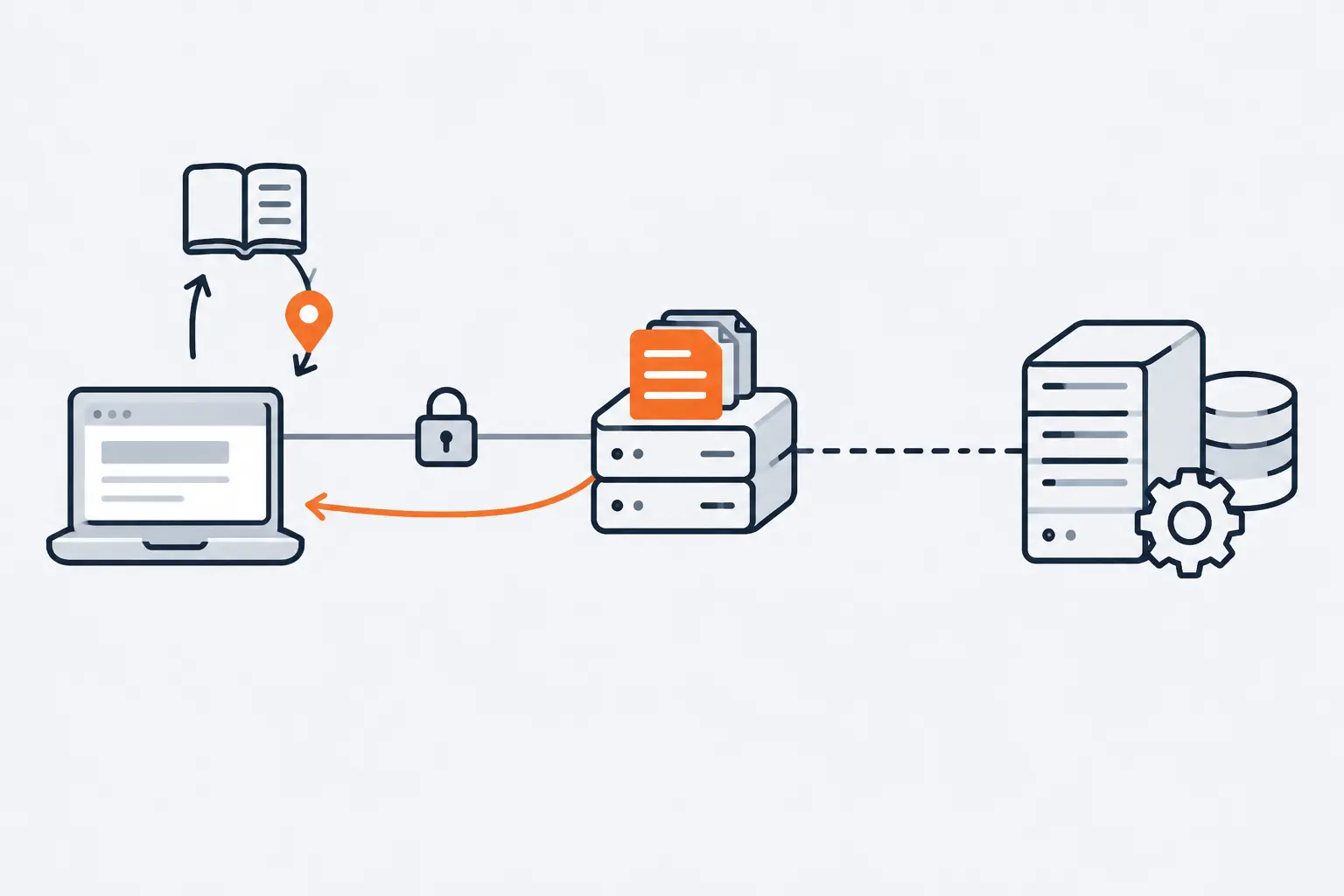 *A page already cached at the edge never waits for the origin server or its database.* The "S" in HTTPS is no longer optional. Google's Chrome team [announced in October 2025](https://blog.google/security/https-by-defau/) that Chrome 154, due in October 2026, turns on its "Always Use Secure Connections" setting for public sites by default, so Chrome asks for the user's permission before first loading any public site without HTTPS. Certificates also expire on a schedule; our guide to [renewing an SSL certificate](https://computese.com/ssl-certificate/) covers the automation. ## Static, server-side or client-side rendering: when each fits The biggest architecture choice in a modern site is where the HTML is built. [web.dev's guide to rendering on the web](https://web.dev/articles/rendering-on-the-web), written by Chrome engineers, compares the options and broadly encourages server-side or static rendering over approaches where the browser has to rebuild the whole page in JavaScript. The four patterns: | Approach | Where the HTML is built | Fits | Trade-off | | --------------------------- | ------------------------------------------------- | -------------------------------------------------------------------------------- | -------------------------------------------------------------------------- | | Static rendering | Once, at build or publish time, served from a CDN | Marketing pages, blogs, documentation: the same for everyone | Every URL must be generated ahead of time and rebuilt when content changes | | Server-side rendering (SSR) | On the server, for each request | Personalized pages, search results, live prices and stock | Work on every request can delay the first byte unless responses are cached | | Client-side rendering (CSR) | In the browser, by JavaScript | Tools used after sign-in: dashboards, editors, internal apps | The JavaScript grows with the app and competes with taps and clicks | | Hydration (hybrid) | On the server first, then again in the browser | Server-rendered pages with interactive parts; common in React and Vue frameworks | The page can look ready before it responds to input | With static or server rendering, the HTML that arrives already contains the content, so the browser can paint it as soon as it has parsed it. With client-side rendering, the first response is little more than an empty shell and a bundle of JavaScript; the visitor's device downloads and runs that code, fetches the data, then builds the page. web.dev notes that client-side rendering is difficult to make and keep fast on mobile devices, because the JavaScript it needs tends to grow as the application grows, which hurts Interaction to Next Paint (INP), the Core Web Vital for responsiveness. Hydration, where browser code takes over a server-rendered page, paints early but can leave a page that looks ready and does not yet respond. 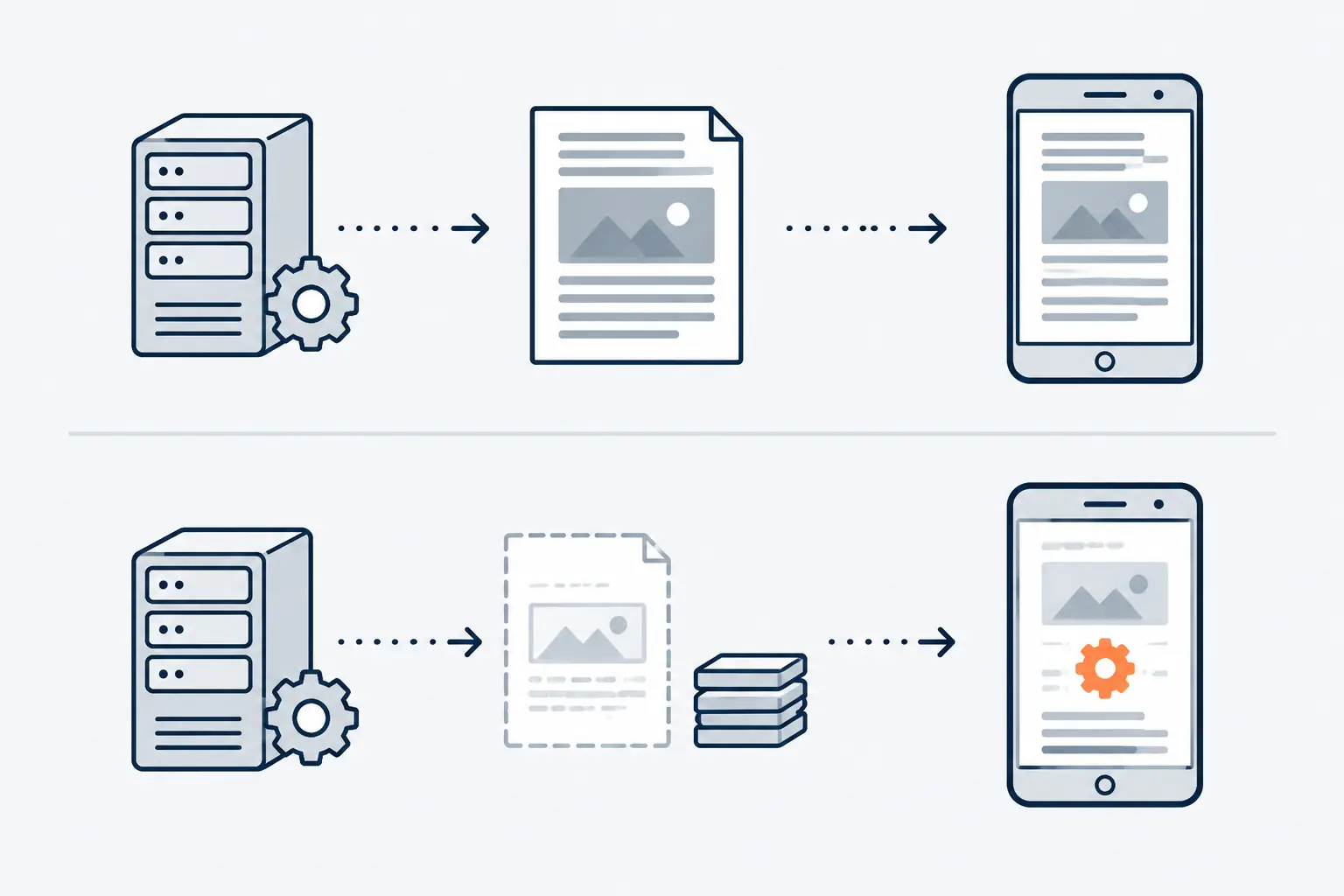 *Client-side rendering hands the work of building the page to the visitor's device, which is why it is the hardest to keep fast on phones.* Search engines add a second reason to put content in the server HTML. Google renders JavaScript, but its [JavaScript SEO documentation](https://developers.google.com/search/docs/crawling-indexing/javascript/javascript-seo-basics) still recommends server-side rendering or pre-rendering, because it makes pages faster for users and crawlers and not every bot can run JavaScript. A practical rule: render public pages statically wherever the content is the same for everyone, server-render what must be personal or current, and keep client-side rendering for screens behind a login. Frameworks such as Next.js and Nuxt offer both static and server rendering, so the choice can be made page by page rather than once for the whole site. For how Google handles the rendering step, see [how the Google search engine works](https://computese.com/how-google-search-engine-works/). > [!TIP] > To see how a page is built, turn off JavaScript in your browser and reload it. A statically or server-rendered page keeps its content and most of its links; a client-rendered one is mostly blank. ## CMS, site builder or custom build Most business websites are built one of four ways. The right one depends on who edits the content and how often, and on what the site has to do beyond publishing pages. | Option | Examples | Fits when | Watch for | | --------------------------------------------------------- | ----------------------------------------------------------- | ---------------------------------------------------------------------- | ------------------------------------------------------------------ | | Hosted site builder | Wix, Squarespace, Shopify for shops | A small site, a small budget, standard features, one or two editors | You rent the platform: its features, speed and export limits apply | | Open-source CMS | WordPress, Drupal | Editors publish often and rely on plugins; you want to choose the host | Every plugin is code someone has to update, audit and keep fast | | [Headless CMS](https://computese.com/headless-cms/) with a front-end framework | Sanity, Contentful, Strapi or Payload, with Next.js or Nuxt | Structured content reused across pages, channels or languages | Two systems to run: the content platform and the front end | | Custom web application | Laravel, Django, Ruby on Rails, ASP.NET Core, Next.js | Sign-in, roles, data and integrations: the site is a product or a tool | Identity, APIs and automated tests are needed from day one | A content management system (CMS) is the default for good reasons: editors change pages without touching code. HTTP Archive's [2025 Web Almanac](https://almanac.httparchive.org/en/2025/cms) found a CMS behind more than 54% of the websites it measured, and WordPress behind roughly 64% of those. The same chapter shows that the platform alone does not decide quality: only 45% of WordPress sites on mobile had good Core Web Vitals, against 74% for Wix, and the authors trace WordPress's wide spread to how each site is configured (hosting, theme, plugins and page builders) more than to WordPress itself. That configuration is also where the security risk sits. Patchstack, a WordPress security vendor, counted [11,334 new vulnerabilities in the WordPress ecosystem in 2025](https://patchstack.com/whitepaper/state-of-wordpress-security-in-2026/): 91% were in plugins and 9% in themes, and only six were in WordPress core. Choose plugins the way you would choose a supplier, and budget for keeping them updated. Site builders trade control for convenience, and the trade shows when you leave. [Squarespace's export tool](https://support.squarespace.com/hc/en-us/articles/206566687-Exporting-your-site), for example, produces a WordPress-format file and leaves out store pages, product and video blocks, style settings and custom CSS. That is acceptable for a site you expect to replace in a few years; it matters for one you expect to grow. ### Where the site runs Hosting follows the build. A site builder includes it. A WordPress site runs on shared hosting (inexpensive, with one server shared among many customers), a managed WordPress platform (caching, updates and backups handled for you, within the platform's limits) or a virtual private server (full control, with operating system patching now part of the job). Static and hybrid front ends are usually deployed to an edge or serverless hosting platform, which serves pre-built pages from a CDN and runs server code only when a request needs it; our guide to [serverless computing](https://computese.com/the-future-of-serverless-computing-streamlining/) explains that model. Custom applications with several environments tend to run in containers on AWS, Azure or Google Cloud. Whichever you choose, keep the domain, DNS and hosting accounts in your organization's name. Once a site is live, our [hosting and maintenance service](https://computese.com/services/hosting-maintenance/) takes on the patching, 3-2-1 backups proven by restore drills, and uptime and certificate monitoring. ## The non-negotiables: accessibility, speed, security and search Four requirements apply to every site, whatever it is built with. They are far easier to build into the first template than to retrofit after launch, when every page has to be revisited. | Requirement | The standard | How it is checked | | ------------- | ---------------------------------------------------------------------- | ------------------------------------------------------------------------------------ | | Accessibility | WCAG 2.2, Level AA | Automated scans, plus keyboard and screen reader testing by a person | | Performance | Core Web Vitals: LCP within 2.5 s, INP 200 ms or less, CLS 0.1 or less | Lighthouse in the lab; Chrome UX Report data in PageSpeed Insights or Search Console | | Security | HTTPS everywhere; the OWASP Top 10:2025 | Dependency and code scanning, and a security test before launch | | Search | Google's SEO Starter Guide | Search Console, and a crawl of the staging site before launch | ### Accessibility: WCAG 2.2 AA The Web Content Accessibility Guidelines are the W3C standard for accessible web content. [WCAG 2.2](https://www.w3.org/TR/WCAG22/), first published in October 2023 and updated in December 2024, groups its success criteria under four principles (perceivable, operable, understandable and robust), and Level AA conformance means a page meets every Level A and Level AA criterion. In practice: text alternatives for images, labelled form fields, enough colour contrast, everything usable with a keyboard, a visible focus indicator, and pages that still work when text is enlarged. Most popular sites still miss it. In February 2026 [the WebAIM Million](https://webaim.org/projects/million/) found detectable WCAG 2 failures on 95.9% of the top million home pages, an average of 56.1 errors each, and 96% of those errors fell into six types: low-contrast text, missing alternative text, missing form labels, empty links, empty buttons and a missing document language. WebAIM also points out that automated tools cannot detect every failure, so testing needs a person with a keyboard and a screen reader as well. Our [WCAG compliance guide](https://computese.com/how-to-make-website-wcag-compliant/) covers the full process and the laws that refer to it. ### Performance: Core Web Vitals Google's [Web Vitals](https://web.dev/articles/vitals) program defines three Core Web Vitals: Largest Contentful Paint (LCP) for loading, which should happen within 2.5 seconds; Interaction to Next Paint (INP) for responsiveness, 200 milliseconds or less; and Cumulative Layout Shift (CLS) for visual stability, 0.1 or less. A page passes when it meets all three at the 75th percentile of real page loads, measured separately for mobile and desktop. Lab tools such as Lighthouse catch regressions before release but cannot measure INP, because nobody interacts with the page; field data from real visitors is the verdict. Google [highly recommends good Core Web Vitals](https://developers.google.com/search/docs/appearance/core-web-vitals) for success with Search and says they align with what its core ranking systems reward. Rendering choices, images and the amount of JavaScript weigh on all three, which is why performance belongs in the architecture rather than in a plugin added at the end. Our [mobile optimization guide](https://computese.com/mobile-optimization-for-your-website/) lists the fixes metric by metric. ### Security: HTTPS and the OWASP Top 10 Serve everything over HTTPS, keep every component updated, and design against the common failures. The [OWASP Top 10:2025](https://top10.owasp.org/2025), the latest edition as of September 2026, lists the most critical security risks to web applications, led by broken access control (A01), security misconfiguration (A02) and software supply chain failures (A03). Even a brochure site has a CMS login, forms and third-party code, so the list applies to it too. Our [secure coding best practices](https://computese.com/best-practices-for-secure-coding/) turn the list into habits for developers, and our [website security checklist](https://computese.com/essential-tips-to-secure-your-website/) covers what site owners control. ### Search: basics built into the templates Search engine optimization starts in development. Much of Google's [SEO Starter Guide](https://developers.google.com/search/docs/fundamentals/seo-starter-guide) is about things the build controls: crawlable links (Google finds most pages through links from pages it has already crawled), a unique, clear title on every page, descriptive URLs, one canonical URL for each piece of content, and a sitemap listing the URLs you care about. Put the main content in the server HTML, as described above, and add structured data where it applies. Our [SEO tips for websites](https://computese.com/seo-tips-for-websites-boost-your-online-presence/) take it further once the site is live, and [what SEO is](https://computese.com/what-is-seo/) explains the whole discipline. ## The web development process, stage by stage Most website projects follow the same six stages, whatever their size. Each stage ends with something you can review, and the quality checks run from the first build, not only in the test stage. (Larger business software follows the broader [software development life cycle](https://computese.com/software-and-development/), with more weight on requirements, architecture and release management.) ### 1. Discovery Agree on the goals (what the site must achieve, and how you will measure it), the audiences, the content that exists and the content that must be written, the functions and integrations, and the constraints: budget, deadline, platform and legal requirements. The output is a sitemap, a content plan and a written scope. If you are replacing a site, discovery also lists every existing URL, because each one needs a destination at launch. ### 2. Design Wireframes settle the structure. Then the key templates (home, service, article, contact) are designed at phone and desktop sizes, ideally as a small system of reusable components and design tokens rather than a set of one-off pages. Accessibility starts here: contrast, type sizes, focus states and form layouts are design decisions before they are code. ### 3. Build Developers turn the designs into components and templates, set up the CMS or application, and connect the integrations. The work arrives in small changes, each reviewed by a second developer and deployed to a staging address you can open. Version control, usually Git, records every change and makes a rollback possible. ### 4. Test With real content in place on staging, the site is checked against the non-negotiables: automated and manual accessibility tests against WCAG 2.2 AA, performance on a mid-range phone against Core Web Vitals budgets, a security review of forms, logins and dependencies, and checks in the major browsers. Content is proofread in its final layout, and every form is tested end to end, including where its emails land. ### 5. Launch Launch is a planned switch, not a button. When the new site replaces an old one, the critical part is redirects. Google's [guide to site moves](https://developers.google.com/search/docs/crawling-indexing/site-move-with-url-changes) asks for a mapping from every old URL to its new one, implemented as server-side permanent redirects (301 or 308) that go straight to the final address rather than through a chain, and warns that redirecting many old URLs to the home page can be treated as soft 404 errors. Analytics, Search Console, the new sitemap and uptime monitoring go live the same day. 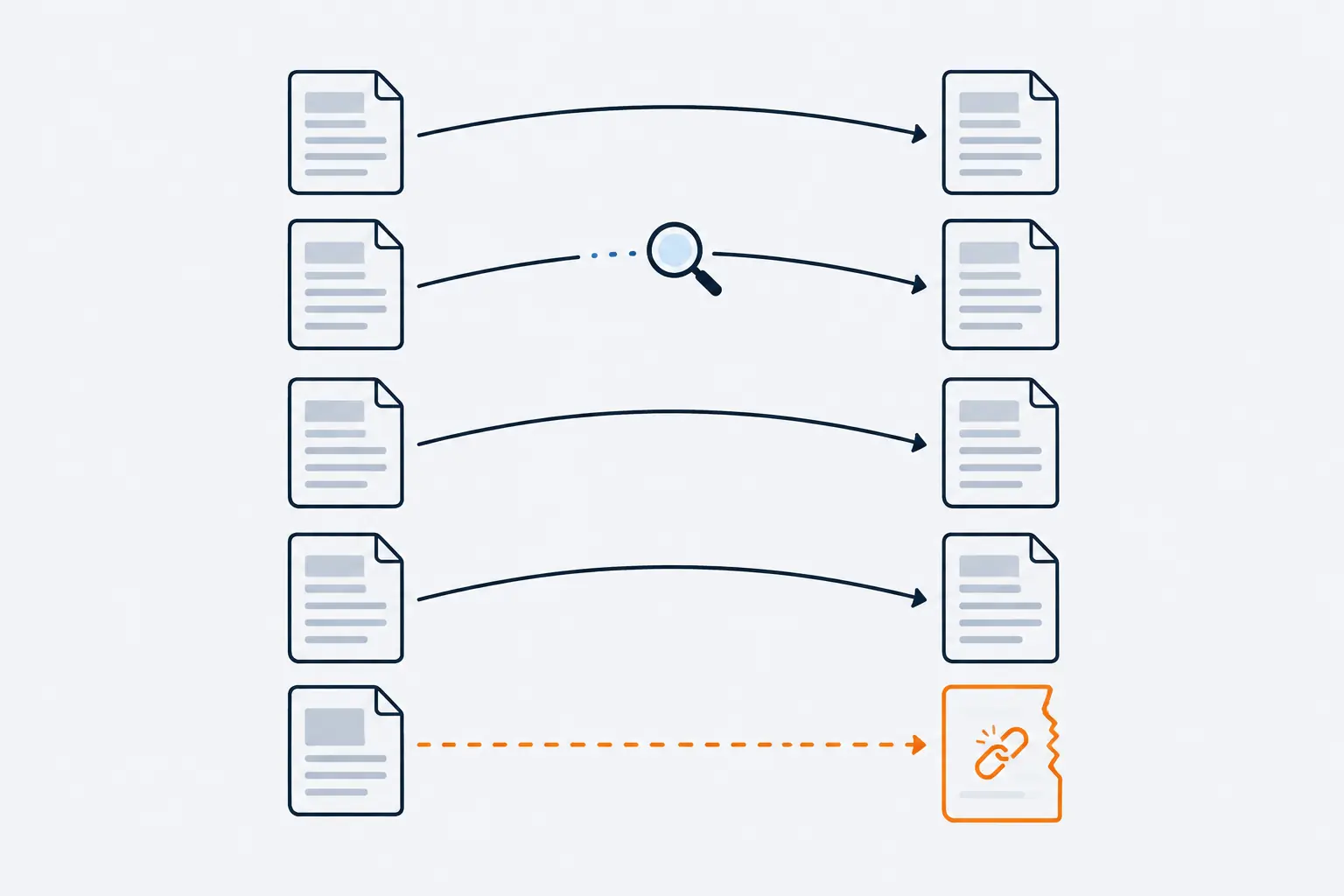 *Every old URL needs a destination: one without a redirect sends visitors and search engines to an error page.* ### 6. Maintain A website is software, and software needs updates. The CMS, plugins, themes, framework and server all receive security fixes. WordPress's own [hardening guide](https://developer.wordpress.org/advanced-administration/security/hardening/) warns that older versions are not maintained with security updates, and that once a fix is released, the information needed to exploit the old version is almost certainly public. Plan for scheduled updates, backups you have actually restored, uptime and certificate monitoring, and a budget for small changes. Our guide to [website backups](https://computese.com/the-importance-of-backup-solutions-for-website/) covers the recovery side. ## What drives the cost and timeline of a website Quotes for "a website" vary widely because the work behind them does. Page count is a poor guide; these drivers are better ones: | Driver | Why it adds work | How to keep it in check | | -------------------------- | ----------------------------------------------------------------------------------------------- | -------------------------------------------------------------- | | Unique templates | Each distinct layout is designed, built, tested and made accessible; pages reusing it are cheap | Reuse a small set of templates and avoid one-off layouts | | Content | Writing, photography, video and translation take real time, and only you can approve them | Start content in discovery and name who signs it off | | Functions and integrations | Forms into a CRM, booking, payments, search and sign-in each bring edge cases and tests | Launch with what the business needs now; add the rest later | | Migration | Old content has to be moved and cleaned up, and every old URL redirected | Inventory early, and drop content nobody visits | | Languages and regions | Every language multiplies content, testing and search set-up | Launch with the languages you can maintain, and build for more | | Quality targets | Accessibility, performance budgets and security review take time in every stage | Put them in the scope from the start rather than after launch | | Decision-making | Every extra approver adds review rounds | One decision-maker with the authority to sign off | | Running costs | Hosting, licences, updates, monitoring and small changes continue after launch | Budget a yearly amount, not just the build | The pricing model matters as much as the total. A fixed price suits a scope you can write down precisely; time and materials suits work you will discover as you go, such as a web application whose requirements change once real users try it. Either way, ask for the estimate broken down by these drivers, so you can see which decisions move the number. The same drivers set the schedule, and delays that start outside the code (content that is not ready, approvals that wait a week) push a launch date as surely as technical problems do. ## How to choose and brief a web developer or agency Whether you hire a freelancer, an agency or an in-house team, the brief is what makes quotes comparable. A useful brief fits on two pages and covers: 1. **Goals:** what the site must achieve (inquiries, sales, bookings, hiring) and how you will measure it. 2. **Audiences:** who visits, on which devices, and what they need to do. 3. **Content:** what exists, what must be written, and who writes it. 4. **Functions and integrations:** forms, search, booking, payments or sign-in, and the systems they connect to, such as a CRM, email or accounting. 5. **Platform constraints:** a CMS or host you must keep, and who will edit the site. 6. **Standards:** WCAG 2.2 AA, Core Web Vitals targets, security expectations and languages. 7. **Budget range and deadline,** including what the deadline is tied to. 8. **Ownership:** the domain, code repository, design files, hosting and analytics accounts, all in your organization's name. Then ask each candidate the same questions: - Can we see live sites you built, and speak to the people who run them? - Who will do the design, the development, the accessibility testing and the launch? - How and when do you test accessibility and performance? - Where will we see work in progress? (A staging address and regular demos are the answer you want.) - Who applies updates after launch, and how are changes priced? - What do we own at the end, and how is it handed over? Be wary of guarantees. [Google's own advice on hiring outside help](https://developers.google.com/search/docs/fundamentals/do-i-need-seo) says plainly: "No one can guarantee a #1 ranking on Google." The same page suggests granting only read access to Search Console when someone offers to audit your site. > [!IMPORTANT] > Check who is named as the registrant of your domain. Under [ICANN's registrant rights and responsibilities](https://www.icann.org/resources/pages/benefits-2013-09-16-en), the registrant takes sole responsibility for the registration and use of the domain. If the registrant is your developer rather than your organization, you depend on them to renew it, move it or point it somewhere new. If you want an outside view before you brief anyone, our [web design and development](https://computese.com/services/web-design-development/) team starts with a website audit: speed on real phones, accessibility, search health, content and the platform underneath, ending in a recommendation to refresh, rebuild or replatform. At the end of a build, the code repository, design files and content are handed over with admin access to every service the site depends on. ## Where to start if you want to learn web development If you would rather build a site yourself, or understand what your developers are doing, learn in the order the browser works. MDN's [Learn web development](https://developer.mozilla.org/en-US/docs/Learn_web_development) curriculum is a good spine: getting-started modules for complete beginners, core modules on HTML, CSS, JavaScript, accessibility and version control, then extension modules such as server-side websites with Django or Express. It aims to take you from beginner to comfortable, not to expert. 1. **HTML:** build a few pages with real headings, links, images with alt text, and a form with labels. 2. **CSS:** lay pages out with flexbox and grid, and make them responsive down to phone width. 3. **JavaScript:** events, the DOM and fetching data; pick up a framework such as React only once plain JavaScript makes sense. 4. **Tools:** a code editor, the browser's developer tools, and Git from the first day. 5. **The back end:** one language and framework, one database, and deploying something real. Our [tips for new coders](https://computese.com/essential-tips-for-new-coders/) cover how to practise, read error messages and get your code reviewed. ## Key terms - **Front end**: The part of a website that runs in the visitor's browser: HTML for structure and meaning, CSS for layout and style, and JavaScript for behaviour. - **Back end**: Code that runs on a server: it validates requests, applies business rules, reads and writes the database and decides what to send back to the browser. - **DNS (Domain Name System)**: The internet's directory: it turns a host name such as www.example.com into the IP address of the server the browser should contact. - **HTTPS and TLS**: HTTPS is HTTP carried over TLS, which encrypts the connection and lets the browser verify the server's certificate before any page data is exchanged. - **CDN (content delivery network)**: A network of servers close to visitors that keeps copies of pages and files, so many requests are answered without reaching the origin server. - **Static rendering**: Building each page's HTML once, at build or publish time, and serving the same file to every visitor, usually from a CDN. - **Server-side rendering (SSR)**: Building a page's HTML on the server for each request, so it can include personal or up-to-the-minute data. - **Client-side rendering (CSR)**: Building the page in the browser with JavaScript after a mostly empty HTML document arrives. Hydration is the hybrid: server-rendered HTML that browser code then takes over. - **Headless CMS**: A content management system that stores and edits content but has no front end of its own; the website fetches the content through an API and renders it. - **Core Web Vitals**: Google's three user-experience metrics: Largest Contentful Paint for loading, Interaction to Next Paint for responsiveness and Cumulative Layout Shift for visual stability, judged at the 75th percentile of real visits. ## Common questions ### What is the difference between web design and web development? Web design decides what a site looks like and how it works for the visitor: structure, layout, typography, colour and the path to each action. Web development builds that design in code, connects it to data and other systems, and keeps it running. On small projects one person may do both; on larger ones they are separate roles that work closely together. ### What is the difference between front-end and back-end development? Front-end development is everything that runs in the browser: HTML for structure, CSS for layout and style, and JavaScript for behaviour. Back-end development runs on servers: application code in a language such as PHP, Python, C# or JavaScript on Node.js, plus databases and APIs. A full-stack developer works on both. ### Should I use WordPress, a website builder or a custom build? A hosted builder such as Wix or Squarespace suits a small, standard site on a small budget, as long as you accept that you rent the platform. A CMS such as WordPress, or a headless CMS, suits a site whose editors publish often and which will grow. A custom build suits a site that is really an application, with accounts, permissions, data and integrations. ### How much does a website cost, and how long does it take? Both depend on the same drivers: the number of unique templates, how ready the content is, functions and integrations, migration from an old site, languages, quality targets and how quickly decisions are made. Page count matters less than most people expect. Ask for an estimate broken down by these drivers, and budget separately for hosting, updates and changes after launch. ### Do I need to know how to code to build a website? No. A site builder or a CMS lets you publish without writing code. Knowing basic HTML and CSS still helps you fix small problems, compare quotes and talk to developers, and MDN's Learn web development curriculum is a good place to start. ### Who should own the domain, code and hosting accounts? Your organization. Register the domain in your company's name, keep hosting, DNS and analytics accounts under a company email address, and make the code repository and design files part of the handover. Your developer should have access to these accounts, not own them. ## Sources 1. [What is JavaScript?](https://developer.mozilla.org/en-US/docs/Learn_web_development/Core/Scripting/What_is_JavaScript), MDN Web Docs 2. [Introduction to the server side](https://developer.mozilla.org/en-US/docs/Learn_web_development/Extensions/Server-side/First_steps/Introduction), MDN Web Docs 3. [Populating the page: how browsers work](https://developer.mozilla.org/en-US/docs/Web/Performance/Guides/How_browsers_work), MDN Web Docs 4. [HTTPS by default](https://blog.google/security/https-by-defau/), Google Chrome Security Team 5. [Rendering on the Web](https://web.dev/articles/rendering-on-the-web), web.dev (Google) 6. [Understand JavaScript SEO Basics](https://developers.google.com/search/docs/crawling-indexing/javascript/javascript-seo-basics), Google Search Central 7. [The 2025 Web Almanac: CMS](https://almanac.httparchive.org/en/2025/cms), HTTP Archive 8. [State of WordPress Security in 2026](https://patchstack.com/whitepaper/state-of-wordpress-security-in-2026/), Patchstack 9. [Exporting your site](https://support.squarespace.com/hc/en-us/articles/206566687-Exporting-your-site), Squarespace Help Center 10. [Web Content Accessibility Guidelines (WCAG) 2.2](https://www.w3.org/TR/WCAG22/), W3C 11. [The WebAIM Million: The 2026 report on the accessibility of the top 1,000,000 home pages](https://webaim.org/projects/million/), WebAIM 12. [Web Vitals](https://web.dev/articles/vitals), web.dev (Google) 13. [Understanding Core Web Vitals and Google search results](https://developers.google.com/search/docs/appearance/core-web-vitals), Google Search Central 14. [OWASP Top 10:2025](https://top10.owasp.org/2025), OWASP Foundation 15. [SEO Starter Guide: The Basics](https://developers.google.com/search/docs/fundamentals/seo-starter-guide), Google Search Central 16. [Site moves with URL changes](https://developers.google.com/search/docs/crawling-indexing/site-move-with-url-changes), Google Search Central 17. [Hardening WordPress](https://developer.wordpress.org/advanced-administration/security/hardening/), WordPress Developer Resources 18. [Do You Need an SEO? Tips for Hiring an SEO](https://developers.google.com/search/docs/fundamentals/do-i-need-seo), Google Search Central 19. [Registrants' Benefits and Responsibilities](https://www.icann.org/resources/pages/benefits-2013-09-16-en), ICANN 20. [Learn web development](https://developer.mozilla.org/en-US/docs/Learn_web_development), MDN Web Docs